ShareX Screenshot Shortcuts That Save Time
A short, opinionated set of ShareX screenshot shortcuts, plus how to keep them from clashing with Windows keys.
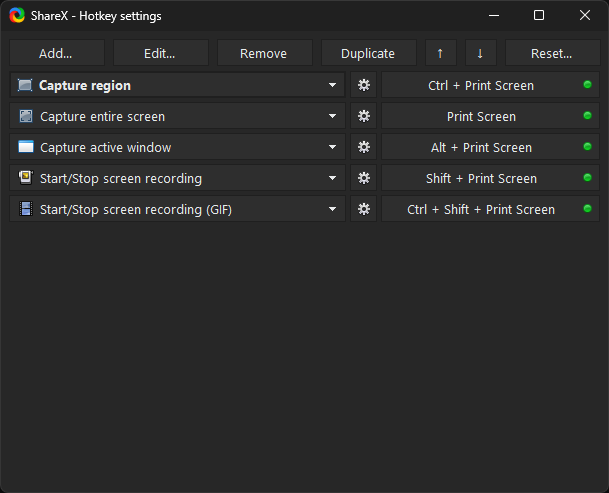
ShareX offers powerful and flexible ways to capture your screen, and at the heart of its efficiency are customizable keyboard shortcuts. While you can always access various capture options through the main window or system tray menu, mastering ShareX screenshot shortcuts can dramatically speed up your workflow, allowing you to capture exactly what you need with a single key press. This guide focuses on how to configure and effectively use ShareX hotkeys to streamline your screen capture process, ensuring you spend less time navigating menus and more time being productive.
Why Shortcuts Matter More Than Menus
Navigating through menus for every screen capture can be time-consuming, especially if you frequently take screenshots. ShareX screenshot shortcuts eliminate these extra clicks, allowing you to trigger specific capture types instantly. Whether you need to grab a full screen, a specific window, or a custom region, a well-configured hotkey makes the process seamless. This direct access not only saves time but also reduces interruptions to your work, keeping your focus on the task at hand.
Beyond simple screen captures, ShareX allows you to associate complex workflows with a single hotkey. For instance, you could set a shortcut to capture a region, automatically upload it to a cloud service, and copy the URL to your clipboard—all in one action. This level of automation is difficult to achieve efficiently without leveraging the power of ShareX hotkeys.
Five Shortcuts to Set First
To get started with optimizing your ShareX workflow, here are five essential ShareX screenshot shortcuts you should consider configuring immediately. These cover the most common capture scenarios and provide a solid foundation for further customization. You can find and modify these settings by opening the ShareX main window, clicking on "Hotkey settings" in the left-hand menu, and then expanding the "Capture" section.
Capture Region
Capturing a specific region is arguably the most frequently used screenshot type. Instead of the entire screen, you can draw a box around the exact area you want. This is incredibly useful for capturing portions of applications, web pages, or documents without including unnecessary elements. Assigning a dedicated hotkey to "Capture region" will save you countless clicks.
- Open ShareX and click "Hotkey settings" on the left.
- Locate the "Capture region" entry under the "Capture" section.
- Click the "None" box next to it and press your desired key combination (e.g., Ctrl + Shift + C).
- Ensure the "After capture tasks" and "After upload tasks" are configured to your preference by clicking the "Settings" icon next to the hotkey. Common choices include "Upload image" and "Copy URL to clipboard".
Capture Active Window
When you need to capture a single application window without any surrounding desktop elements, "Capture active window" is the most efficient method. This hotkey instantly captures the window that currently has focus. This is particularly useful for documentation or when sharing specific application interfaces.
- In "Hotkey settings," find "Capture active window."
- Assign a hotkey (e.g., Ctrl + Alt + W).
- Verify its associated tasks to ensure it performs the desired actions after capture.
Capture Fullscreen
For quick captures of your entire desktop, including all open windows and the taskbar, "Capture fullscreen" is indispensable. While less precise than region capture, it's perfect for quickly sharing your complete screen state.
- Navigate to "Capture fullscreen" within "Hotkey settings."
- Set a convenient hotkey (e.g., Ctrl + Shift + F).
- Adjust the post-capture actions if necessary.
Screen Recording (GIF)
Sometimes, a static image isn't enough. ShareX's ability to record your screen as an animated GIF is excellent for demonstrating short processes or bugs. Configuring a hotkey for "Screen recording (GIF)" allows you to start and stop recordings quickly.
- Find "Screen recording (GIF)" in "Hotkey settings."
- Assign a hotkey (e.g., Ctrl + Shift + G).
- Remember that the first press starts the recording, and the second press stops it. Ensure your "FFmpeg" settings are configured under "Application settings" > "Path" for this feature to work.
Start/Stop Screen Recording
For longer video captures or higher-quality recordings, ShareX's full screen recording feature is ideal. This uses FFmpeg to record video files, which can then be uploaded or saved locally. A dedicated hotkey makes managing these recordings simple.
- Locate "Start/Stop screen recording" in the hotkey list.
- Assign a hotkey (e.g., Ctrl + Shift + V).
- As with GIF recording, ensure FFmpeg is configured. The first press starts, the second stops.
For a complete list of default keybinds and advanced configurations, refer to the default keybind reference.
Taking Over the Print Screen Key
The Print Screen key on your keyboard is traditionally used by Windows to copy a screenshot of your entire screen to the clipboard. ShareX can take over this key, allowing you to assign a custom action to it. This is a powerful way to integrate ShareX seamlessly into your workflow, as the Print Screen key is often instinctively pressed for screen captures.
To configure ShareX to use the Print Screen key:
- Open ShareX and go to "Hotkey settings."
- At the top of the "Hotkey settings" window, you will see a section labeled "Override Windows Print Screen key."
- Check the box next to "Override Windows Print Screen key."
- Below this, you can select the specific action you want ShareX to perform when you press Print Screen. Common choices include "Capture region," "Capture fullscreen," or "Capture active window."
- You can also specify "After capture tasks" and "After upload tasks" for this overridden key, just like any other custom hotkey.
By default, ShareX might suggest "Capture region" for the Print Screen key, which is a popular choice for its versatility. This allows you to quickly define the exact area you want to capture immediately after pressing the key.
If you find that hotkeys stop responding, especially after updates or installing new software, check this setting first, as other applications might try to claim the Print Screen key as well.
Avoiding Conflicts with Windows and Other Apps
When setting up ShareX screenshot shortcuts, it's crucial to be aware of potential conflicts with existing Windows shortcuts or hotkeys used by other applications. A conflict occurs when two different programs or system functions are assigned the same key combination, leading to unpredictable behavior or one program overriding the other.
Identify Common Conflicts
- Windows Default Shortcuts: Many Ctrl, Alt, and Shift combinations are used by Windows itself. For example, Alt + Tab switches windows, and Ctrl + C copies. Avoid these.
- Application-Specific Hotkeys: Gaming applications, design software, and even web browsers often have their own extensive lists of hotkeys. If you frequently use a specific application, check its documentation for default hotkeys before assigning them in ShareX.
- Other Screenshot Tools: If you have other screenshot utilities installed and running, they might also be trying to use the Print Screen key or other common capture shortcuts.
Strategies for Avoiding Conflicts
- Use Modifier Combinations: Opt for combinations involving three or more modifier keys (e.g., Ctrl + Shift + Alt + S) or less common modifier keys like the Windows key (e.g., Win + Shift + S). While Win + Shift + S is the default for Windows Snipping Tool, you can override it in ShareX or choose another combination.
- Test Your Hotkeys: After setting a new hotkey in ShareX, immediately test it to ensure it triggers the intended ShareX action and doesn't interfere with other applications.
- Check ShareX's Conflict Detection: ShareX often provides a warning if you try to assign a hotkey that is already in use by another ShareX function. While it doesn't detect external conflicts, this helps prevent internal issues.
- Review ShareX's Hotkey List: Periodically review your the complete ShareX hotkeys guide in ShareX's "Hotkey settings" to ensure you remember what each key does and to identify any accidental duplicates.
- Consider Using F-Keys: The function keys (F1 through F12) are often good candidates for ShareX hotkeys, especially when combined with modifier keys, as they are less frequently used by other applications for system-wide shortcuts.
If you encounter a hotkey conflict, the best approach is to reassign the hotkey in ShareX to a different, unused combination. This ensures ShareX functions correctly without disrupting your other applications.
Shortcuts for Repeat Captures of the Same Area
One of ShareX's most powerful time-saving features is the ability to quickly re-capture the last region you selected. This is invaluable when you need to take multiple screenshots of the same precise area, perhaps for a step-by-step guide or to compare different states of an application within a fixed boundary. Instead of manually drawing the region each time, you can use a dedicated hotkey to instantly capture the previously defined area.
To set up a shortcut for repeating the last capture:
- Open ShareX and navigate to "Hotkey settings."
- Look for the entry named "Capture last region" under the "Capture" section.
- Click the "None" box and press your desired key combination (e.g., Alt + Shift + R).
- Ensure the "After capture tasks" and "After upload tasks" associated with this hotkey are configured to your preference. You might want to automatically save the image, upload it, or copy the file path.
Once this hotkey is set, the workflow is straightforward:
- First, use your "Capture region" hotkey (or select "Capture region" from the "Capture" menu) to define your desired area. ShareX will remember this region.
- Then, whenever you need to capture that exact same area again, simply press your "Capture last region" hotkey. ShareX will instantly capture the identical dimensions and position without requiring you to redraw anything.
This feature significantly speeds up workflows involving repetitive captures. For instance, if you're documenting a software interface and need to show various dialog boxes that appear within a specific part of the screen, "Capture last region" ensures consistency and efficiency. It works seamlessly with all screenshot modes explained in ShareX.
Frequently Asked Questions
How do I assign a custom hotkey in ShareX?
Open ShareX, click "Hotkey settings" on the left, then locate the desired action (e.g., "Capture region"). Click the "None" box next to it and press your preferred key combination. ShareX will then register this shortcut.
Can I use the Print Screen key with ShareX?
Yes, ShareX can override the default Windows behavior of the Print Screen key. In "Hotkey settings," check "Override Windows Print Screen key" and select the ShareX action you want to trigger when you press Print Screen.
What if a ShareX hotkey conflicts with another application?
If a ShareX hotkey conflicts with another application, ShareX's action might not trigger, or the other application's action might occur instead. The best solution is to reassign the ShareX hotkey to a unique combination, ideally using multiple modifier keys like Ctrl + Shift + Alt.
How can I capture the same screen area multiple times without redrawing?
ShareX has a "Capture last region" hotkey. First, use your "Capture region" hotkey to define the area. After that, pressing your "Capture last region" hotkey will instantly capture the exact same area again without needing to redraw it.
Get ShareX for Windows
ShareX is free and open source. Install it, then come back and try the steps above.
Download ShareX