ShareX Scrolling Screenshot: Capture a Whole Page
Scrolling capture in ShareX takes a series of screenshots while a window scrolls, then stitches them into one tall image.
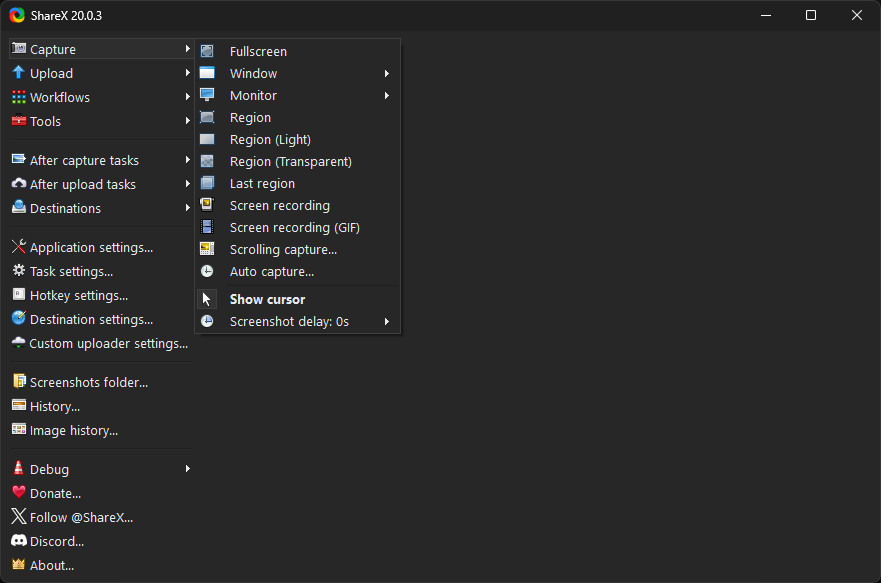
ShareX provides a powerful and versatile scrolling screenshot documentation feature, allowing you to capture entire web pages, long documents, or any scrollable content that extends beyond your screen's visible area. This is particularly useful for archiving information, sharing complete articles, or documenting multi-page forms.
Unlike a standard screen capture that only grabs what's currently visible, a ShareX scrolling screenshot tool intelligently scrolls down the page, taking multiple captures and then stitching them together into one seamless image. This guide will walk you through using this feature effectively.
What a Scrolling Screenshot Is
A scrolling screenshot, sometimes referred to as a scrolling capture or full-page capture, is a single image file that contains the entire content of a scrollable area, even if that content is too long or wide to fit on your display at once. Imagine taking a series of pictures as you scroll down a web page, and then seamlessly combining all those pictures into one tall image – that's essentially what ShareX does automatically.
This is distinct from a regular how ShareX screen capture works, which only captures the visible portion of your screen. ShareX handles the scrolling, capturing, and stitching process, eliminating the need for manual cropping and combining in an image editor. The result is a comprehensive, single-image representation of the entire scrollable content.
Start a Scrolling Capture Step by Step
Initiating a scrolling capture in ShareX is straightforward. Follow these steps to capture a scrollable window or region:
- Prepare the content: Open the application or web browser window you wish to capture. Make sure the content you want to scroll and capture is visible and that there are scroll bars present (either vertical, horizontal, or both).
- Initiate the capture: There are a few ways to start:
- From the main ShareX window, click Capture in the left-hand menu, then select Scrolling capture.
- If you have a hotkey assigned for "Scrolling capture" (you can configure these in Hotkey settings), press that hotkey.
- Right-click the ShareX icon in your system tray, hover over Capture, then select Scrolling capture.
- Select the window or region: After initiating the scrolling capture, your cursor will change. Click on the specific window or region that contains the scrollable content you want to capture. For example, if you want to capture a web page, click anywhere inside the browser window. If you want to capture a specific scrollable panel within an application, click on that panel.
- Observe the capture process: ShareX will now automatically scroll through the selected area, taking multiple screenshots. You will see the content scrolling rapidly. Do not interact with your computer during this process, as it can disrupt the capture.
- Review and save: Once ShareX finishes scrolling and stitching, the final image will appear in the ShareX image editor (if enabled in your After capture tasks) or be automatically saved to your configured destination folder.
You can also access some basic capture settings reference that influence the scrolling capture behavior before starting the process. These are typically found under Task settings > Capture > Scrolling capture.
The Scroll Settings That Change the Result
ShareX offers several settings that allow you to fine-tune how the scrolling capture behaves. These are crucial for getting the best results, especially with complex pages or applications. You can access these settings via Task settings > Capture > Scrolling capture.
- Scroll method: This is perhaps the most critical setting.
- Auto: ShareX attempts to automatically detect the best scrolling method. This works well for most standard web pages.
- Page Up/Down: Simulates pressing the Page Up/Page Down keys. Useful for applications or older web pages where direct scroll bar manipulation might be difficult.
- Mouse wheel: Simulates mouse wheel scrolling. Can be effective for some applications.
- Drag scrollbar: ShareX attempts to directly drag the scrollbar. This is often reliable for applications with standard scrollbars.
- Custom: Allows you to define custom scroll steps. This is an advanced option for very specific scenarios.
- Scroll delay (ms): This setting controls the pause (in milliseconds) between each scroll step. Increasing the delay can help with pages that load content dynamically as you scroll, or with slower systems, preventing missing sections. However, it will make the capture process take longer.
- Scroll step (pixels): Determines how many pixels ShareX scrolls down with each step. A smaller step can lead to more accurate stitching and fewer missed areas, but it also increases the number of individual captures and the total capture time. A larger step is faster but might miss content or result in less precise stitching.
- Detect scrollbar automatically: When enabled, ShareX tries to find the scrollbar itself. If disabled, you might need to manually click on the scrollbar during the capture process if the auto-detection fails.
- Detect fixed elements: Many modern web pages have "sticky" headers or footers that remain visible as you scroll. Enabling this option helps ShareX identify and exclude these elements from being duplicated in the final stitched image, preventing visual artifacts.
- Allow horizontal scrolling: If the content scrolls horizontally as well as vertically (e.g., a wide table or spreadsheet), enable this option to capture the full width.
Experimenting with these settings, particularly the scroll method and scroll delay, is key if you fix a scrolling capture that comes out wrong.
Stitching Options and Trimming Repeated Areas
After ShareX captures all the individual sections of the scrollable content, it stitches them together. The success of this stitching depends not only on the capture settings but also on how ShareX handles overlaps and repeated elements.
- Overlap detection: ShareX intelligently detects overlapping areas between consecutive screenshots. This overlap is essential for seamless stitching. The "Scroll step" setting in the capture options directly influences this overlap. A smaller scroll step typically results in a larger overlap, making stitching more robust.
- Trimming repeated elements:
- Fixed headers/footers: As mentioned in the scroll settings, enabling "Detect fixed elements" (under Task settings > Capture > Scrolling capture) is crucial for pages with sticky headers or footers. Without this, these elements would be duplicated in every captured segment, resulting in a very long image with many identical header/footer sections. ShareX attempts to identify these and trim them out during the stitching phase.
- Other repeated content: In some rare cases, other non-fixed elements might repeat. ShareX's primary mechanism for handling repetition is the "Detect fixed elements" option. If you encounter other repeating content, you might need to manually crop the final image using the built-in image editor or adjust your scroll step to minimize overlap that causes unwanted duplication.
- Stitching algorithm: ShareX uses an internal algorithm to align and blend the captured segments. This process is generally automatic and robust. If you notice misalignments or seams, it usually points to an issue with the initial capture (e.g., content moving during capture, insufficient scroll delay, or an incorrect scroll method).
Always review your stitched image carefully, especially for long or complex pages, to ensure all content is present and there are no unexpected repetitions or gaps.
Pages and Apps That Scroll Poorly
While ShareX's scrolling capture feature is powerful, some web pages or applications can be challenging to capture perfectly. This often happens due to non-standard scrolling mechanisms, dynamic content loading, or complex layouts.
- Infinite scrolling pages: Websites that continuously load new content as you scroll down (e.g., social media feeds, image galleries) can be problematic. ShareX will try to scroll, but it might not know when to stop, or the page might keep adding content, leading to an incomplete or excessively long capture. For these, consider scrolling manually to a point where you want to stop, then initiating the capture.
- Custom scrollbars or scroll-jacking: Some web applications use custom JavaScript to implement their own scrollbars or override the browser's default scrolling behavior. This can confuse ShareX's scroll detection. In such cases, try different "Scroll method" options in Task settings > Capture > Scrolling capture, such as "Page Up/Down" or "Mouse wheel," as these methods simulate keyboard/mouse input rather than directly manipulating scrollbars.
- Content loading dynamically: Pages that load images, ads, or other elements only when they become visible in the viewport (lazy loading) can cause issues. If your "Scroll delay" is too short, ShareX might capture an empty space where content hasn't loaded yet. Increase the "Scroll delay (ms)" in your scrolling capture settings to give the content more time to appear.
- Complex layouts with multiple scrollable areas: If a page has several independent scrollable sections within the same window, ShareX might struggle to identify the correct one to scroll. You may need to experiment with clicking precisely on the desired scrollable area, or in some cases, you might need to capture each section separately.
- Applications with non-standard UI frameworks: Desktop applications that use custom UI frameworks (not standard Windows controls) might not respond well to ShareX's scrolling methods. Again, trying different "Scroll method" options is the first troubleshooting step.
If you consistently face issues with a particular page or application, consider the alternative approach of a full-page browser capture if it's a web page.
When a Full-Page Browser Capture Works Better
For web pages specifically, ShareX offers an alternative and often more reliable method called "Capture web page." This feature leverages the built-in rendering capabilities of web browsers to generate a full-page screenshot, which can bypass many of the issues associated with the general scrolling capture method.
Here's why and when "Capture web page" is often a superior choice for browser content:
- Reliability with complex web pages: "Capture web page" works by instructing a web browser (usually via its developer tools) to render the entire page at once, rather than simulating scrolling. This means it handles infinite scrolling, lazy loading, fixed headers/footers, and custom scrollbars much more effectively, as the browser itself is responsible for presenting the complete content.
- Accuracy: Because the browser renders the entire page, the resulting image is often a more accurate representation of the web page's layout and appearance, without stitching artifacts or missed sections.
- Ease of use: You don't need to adjust scroll delay or scroll step settings; the browser handles the internal rendering complexities.
- How to use it:
- Open the web page you want to capture in your preferred browser (e.g., Chrome, Firefox, Edge).
- In ShareX, click Capture from the main window, then select Capture web page.
- A small dialog will appear. Paste the URL of the web page you want to capture into the "URL" field.
- You can adjust the "Browser" to use (e.g., Chrome, Firefox, Edge) and the "Delay (ms)" before capture (useful for pages that take time to fully load).
- Click Capture. ShareX will then open the browser (if not already open), navigate to the URL, capture the full page, and close the browser window if it opened one itself.
While "Scrolling capture" is versatile for any scrollable window, "Capture web page" is the recommended approach for capturing entire web pages due to its robust handling of browser-specific rendering challenges. You can find more detailed options for this feature under Task settings > Capture > Capture web page.
Frequently Asked Questions
My scrolling capture is missing parts of the page or has gaps. What's wrong?
This often happens when the content loads dynamically or the scroll delay is too short. Go to Task settings > Capture > Scrolling capture and increase the "Scroll delay (ms)" setting. Also, ensure no pop-ups or other elements are obscuring the scrollable area during the capture.
How do I capture a horizontal-scrolling area?
In Task settings > Capture > Scrolling capture, make sure the "Allow horizontal scrolling" option is enabled. Then, when you initiate the scrolling capture, ShareX will attempt to capture both vertical and horizontal scrollable content within the selected region.
Can ShareX capture a scrolling PDF document?
Yes, if the PDF viewer application (like Adobe Reader or your web browser's PDF viewer) has a visible scrollbar and allows standard scrolling behavior. Follow the regular steps for a scrolling capture, clicking on the PDF viewer window. If it struggles, try different "Scroll method" options in the settings.
The captured image has repeated headers or footers. How can I fix this?
This occurs when a web page has "sticky" elements that remain visible as you scroll. To prevent this, go to Task settings > Capture > Scrolling capture and enable the "Detect fixed elements" option. ShareX will then attempt to trim these repeated sections during the stitching process.
Get ShareX for Windows
ShareX is free and open source. Install it, then come back and try the steps above.
Download ShareX